
Environment 15.0 is a release we genuinely enjoyed building. It focuses on making everyday landscape workflows in Revit clearer, faster, and far more connected. This version brings three major upgrades: a new planting mix workflow, redesigned topography analysis tools, and much smoother workflows for site modeling with Alignment & Topography Tools, plus overall performance improvements.
Let’s dive in.
Planting mixes, end to end
Planting workflows finally work as a single, connected system: from mix definition to 3D placement and schedules.
This release brings a truly end-to-end planting workflow. Planting design now works as a single, coherent system – where design intent, quantities, schedules, and 3D representation are always aligned.
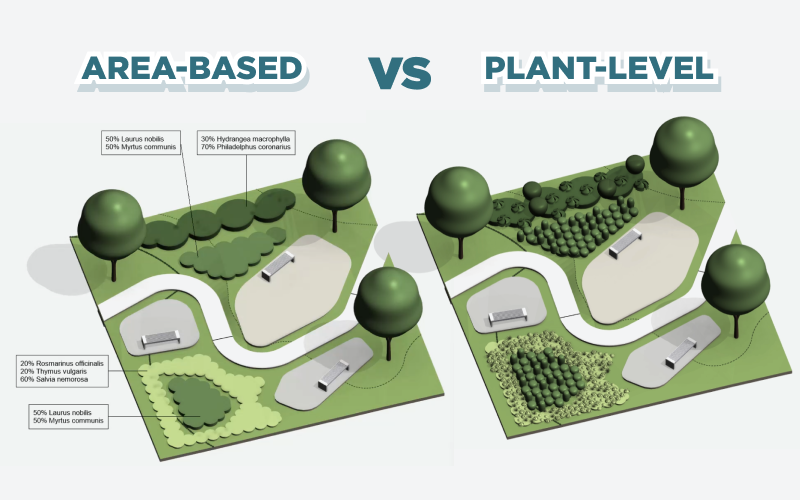
The workflow is built around two complementary ways of working with planting mixes:
- Area-based representation, a new workflow that treats planting as a designed mass using floors or toposolids. It allows you to represent planting structure, quantities, and composition without placing individual plants, while keeping everything fully schedulable and editable.
- Plant-level representation, where planting mixes are translated into real 3D plants using Area Scatter. This approach builds directly on the existing workflow, now significantly refined and tightly synchronized with planting mixes.
Both approaches are driven by the same planting mix definition and can be used independently or together, depending on the level of detail required at each project stage.
Planting Mix in Planting Family Manager
New Planting Mix tab in the Planting Family Manager brings everything related to flower beds and mixes into one clear, structured workflow. It lets you define, calculate, and control planting mixes as structured types rather than manual setups.
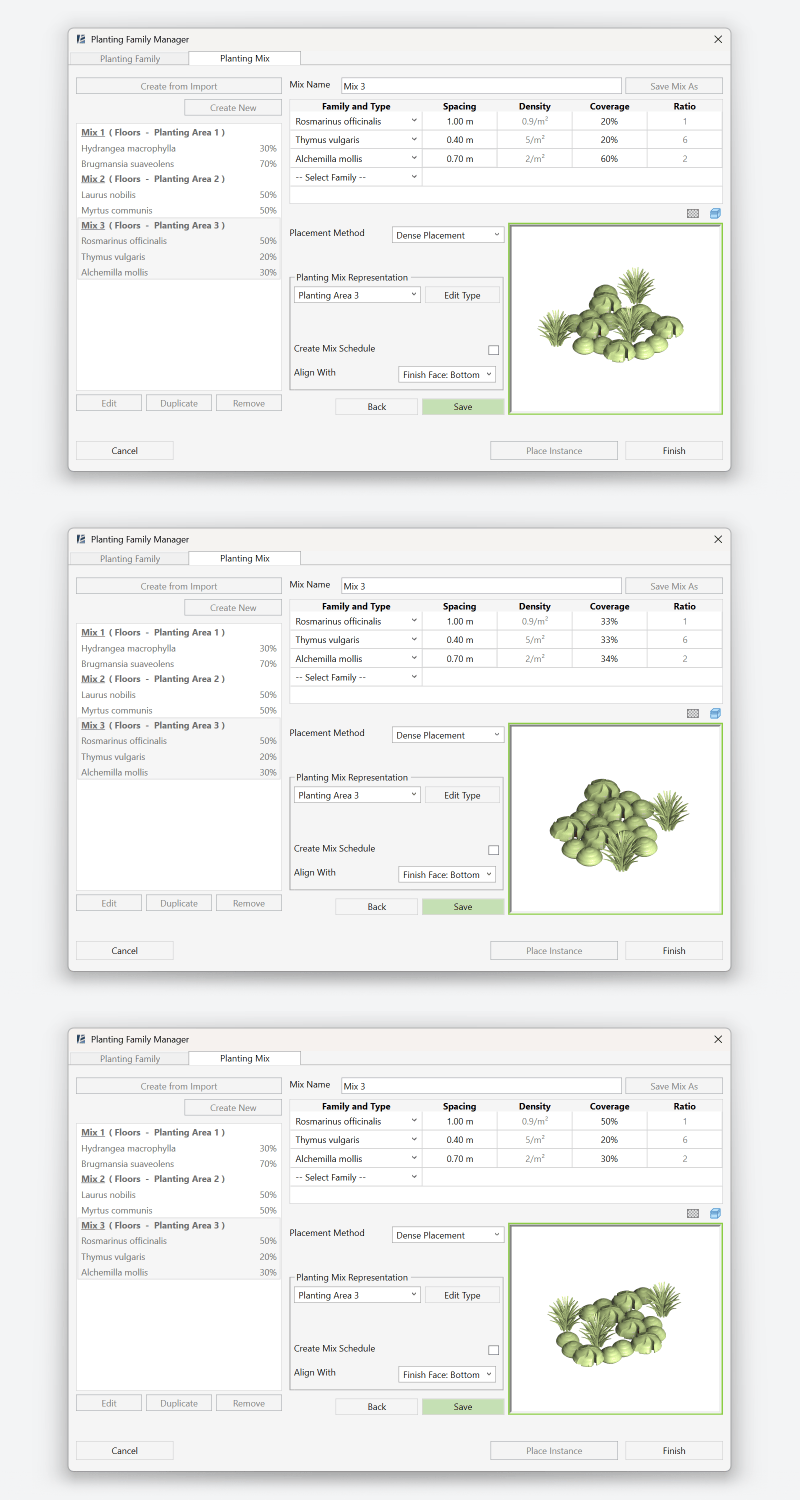
- Create planting mixes as standalone types linked to a slab type and selected plant families
- Define spacing, density, and coverage once: these values drive parameters, schedules, and 3D geometry placement
- Choose between highest-density placement or fixed grid logic, depending on the design intent
Planting Area
The brand-new Planting Area tool rethinks how planting mixes are placed in landscape projects, turning a traditionally fragmented process into a fast, controlled, and design-driven workflow.
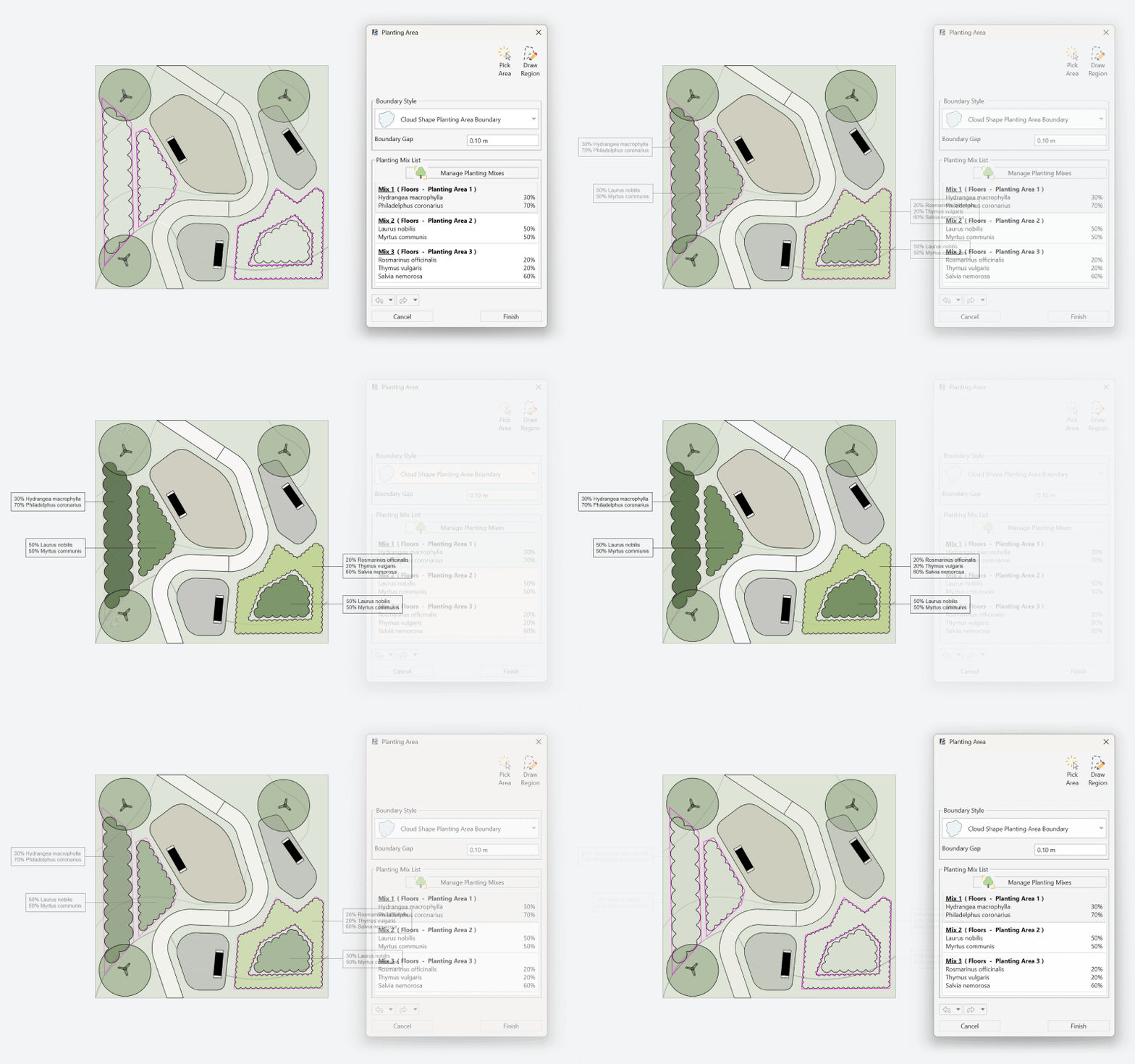
- The tool includes a dedicated drawing mode that allows you to sketch boundaries for multiple planting mixes simultaneously. You can create an unlimited number of mix areas in a single operation, including nested mixes placed inside one another.
- Boundaries are generated automatically based on your chosen edge behavior, whether you prefer clean, straight edges or more organic, cloud-shaped boundaries.
- Floors align to the underlying topography at the moment of creation, skipping the Shape by Topography step.
- All tagging and scheduling parameters are included by default, so you can place tags immediately and insert ready-to-use schedules on your plan. Any changes to the mix update tags and schedules automatically.
Planting Area Schedule
Planting Area Schedule removes one of the biggest friction points in Revit planting workflows: making correct schedules. The tool is designed to make planting mix schedules accessible even to users who have never set up schedules manually.
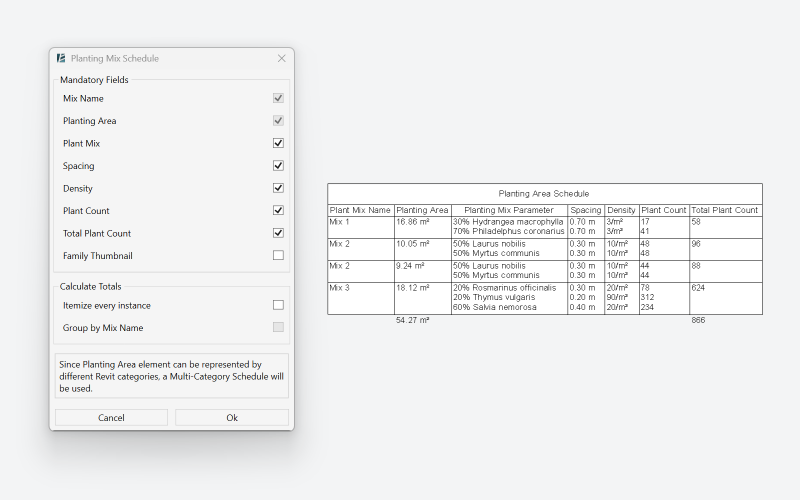
- Create schedules for planting mixes without configuring Revit schedule settings from scratch
- The tool applies correct structure and parameters automatically: you only choose which fields to include
- Create multiple schedules, or update existing ones
- Schedules update automatically when mix composition or area changes
Area Scatter
Area Scatter is now deeply connected to the Planting Mix workflow, turning planting mixes into a reliable foundation for realistic 3D planting. Instead of manually “finishing” planting in 3D, the tool now builds exactly what was defined in the mix.
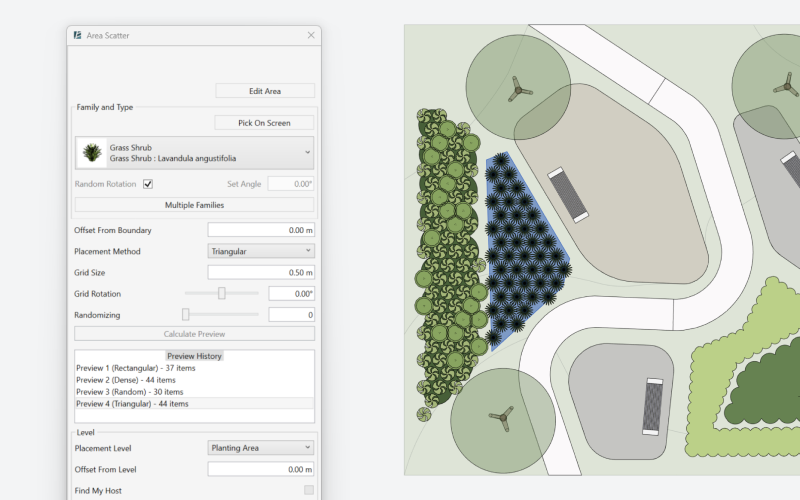
- Area Scatter stays linked to the Planting Mix floor, using its density, coverage percentages, and plant counts to generate a faithful 3D representation of the mix: the resulting planting reflects the intended composition of the mix, showing how it actually occupies the selected area in three dimensions
- Any change made to the linked mix — plants, percentages, or density — automatically triggers a rebuild, keeping 3D planting always in sync
- A new layout history panel allows you to store and compare multiple planting layouts within a single scattering operation. This makes it easy to test alternatives and choose the option that works best visually and spatially during the placement process.
- Dense placement mode enables the most compact possible planting within the selected area, ideal for expressive, fully filled planting schemes
Easy Topography Analysis
Topography analysis is now smoother, clearer, and more intuitive. Colors, ranges, and views all work together automatically, so you can focus on insights instead of setup.
Elevation and Slope Analysis
Analysis ranges are now reusable types, making it easy to standardize setups and apply them across multiple projects.
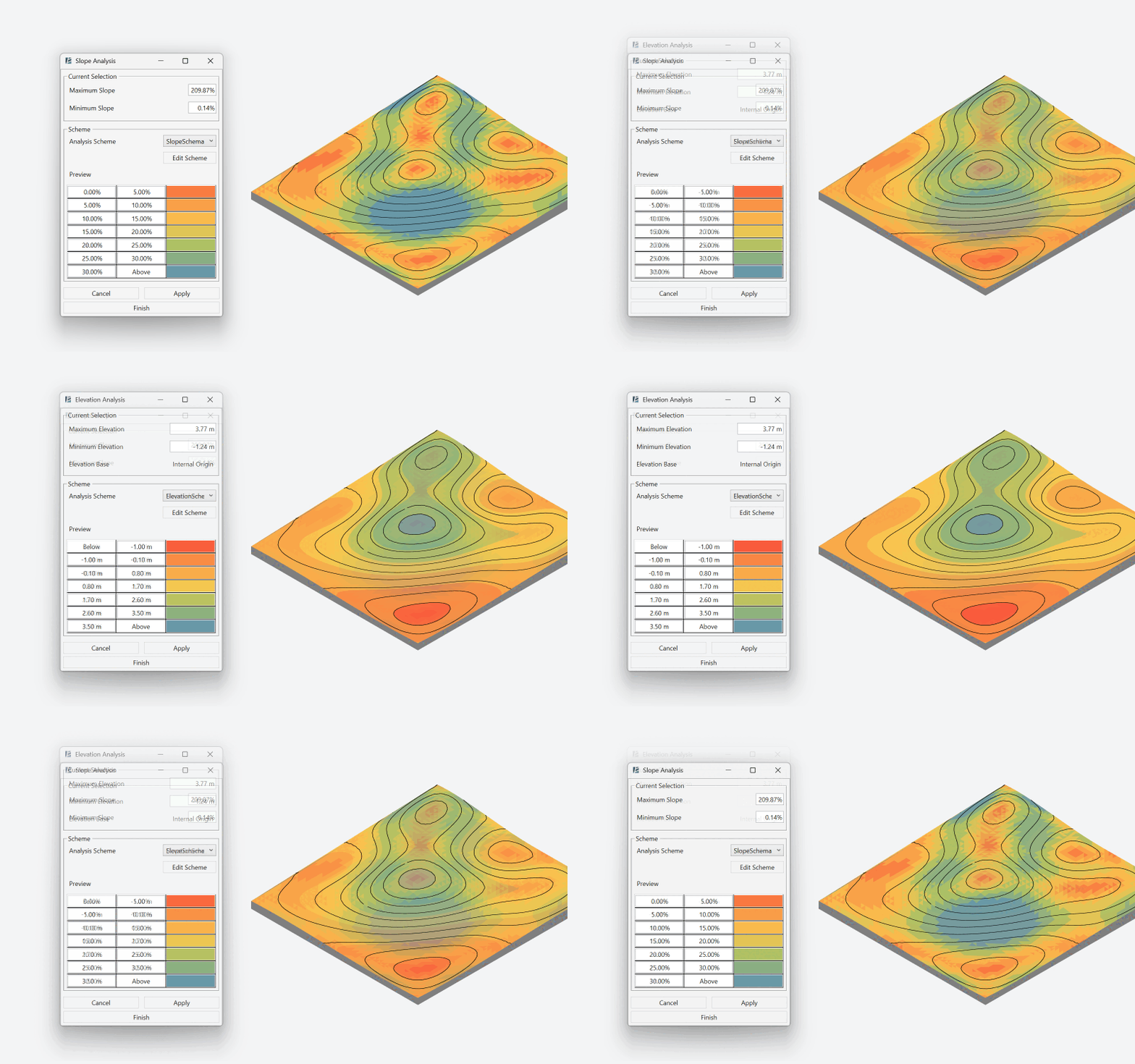
- Automatic plan view templates now present analysis cleanly on the plan, without distracting triangulation lines
- Create, edit, and apply scheme types across multiple analyses: once defined, a scheme behaves like a Revit type. It can be applied anywhere, and any updates you make instantly refresh across all analyses where it’s used
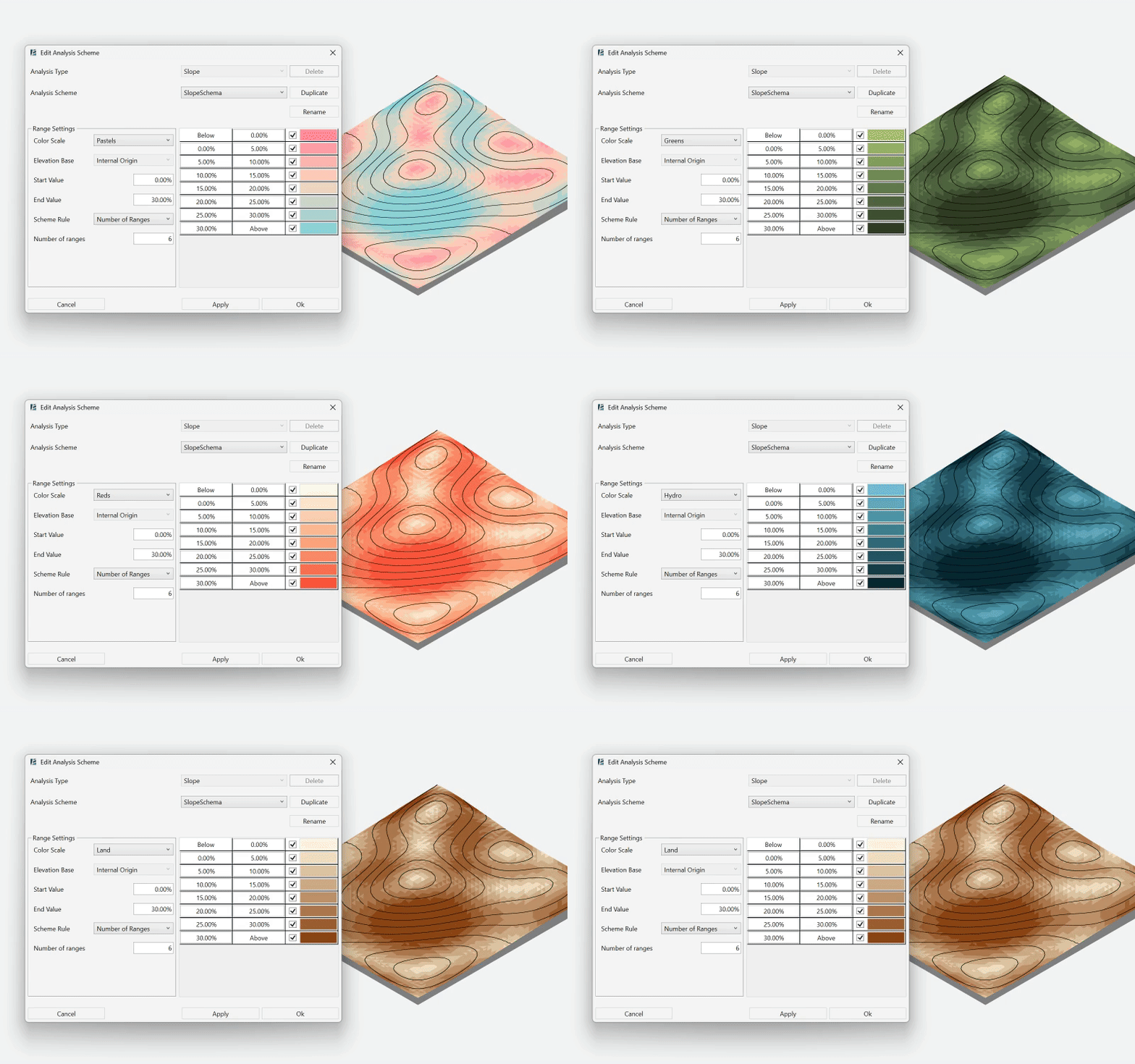
- Seven ready-to-use color presets tailored for different analyses, with the option to define your own custom colors. Gradients automatically adjust depending on the number of selected ranges, giving visually accurate results every time
- Simplified interface and instantly readable results make comparing slopes and elevations fast and intuitive – you can understand the terrain at a glance without extra setup
Range Legend
We’ve finally made legends a natural part of the analysis workflow. No more separate manual steps – your legend is always connected to the data.
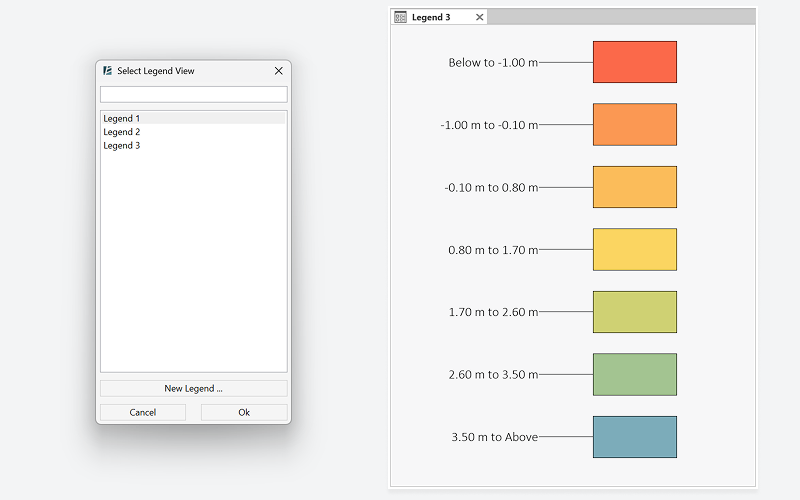
- Legends are created based on the chosen analysis type, automatically matching ranges, colors, and values
- A simplified creation flow allows you to create a legend directly from the tool, without setting it up in advance
- Legends update automatically whenever the legend type or analysis settings change, eliminating the need for manual checks or rebuilds
- The workflow keeps your focus on the analysis itself, not on maintaining separate legend views.
Faster sketches in Alignment & Topography Tools
Creation workflows in the Alignment and Topography tools have been significantly refined to make site modeling feel faster, more intuitive, and far more predictable. Drawing, editing, and connecting geometry now happens with less friction and much more visual control.
Alignment Tools
The Alignment Tools now feels truly native to Revit. Drawing paths is faster, more precise, and fully integrated with familiar sketching behavior.
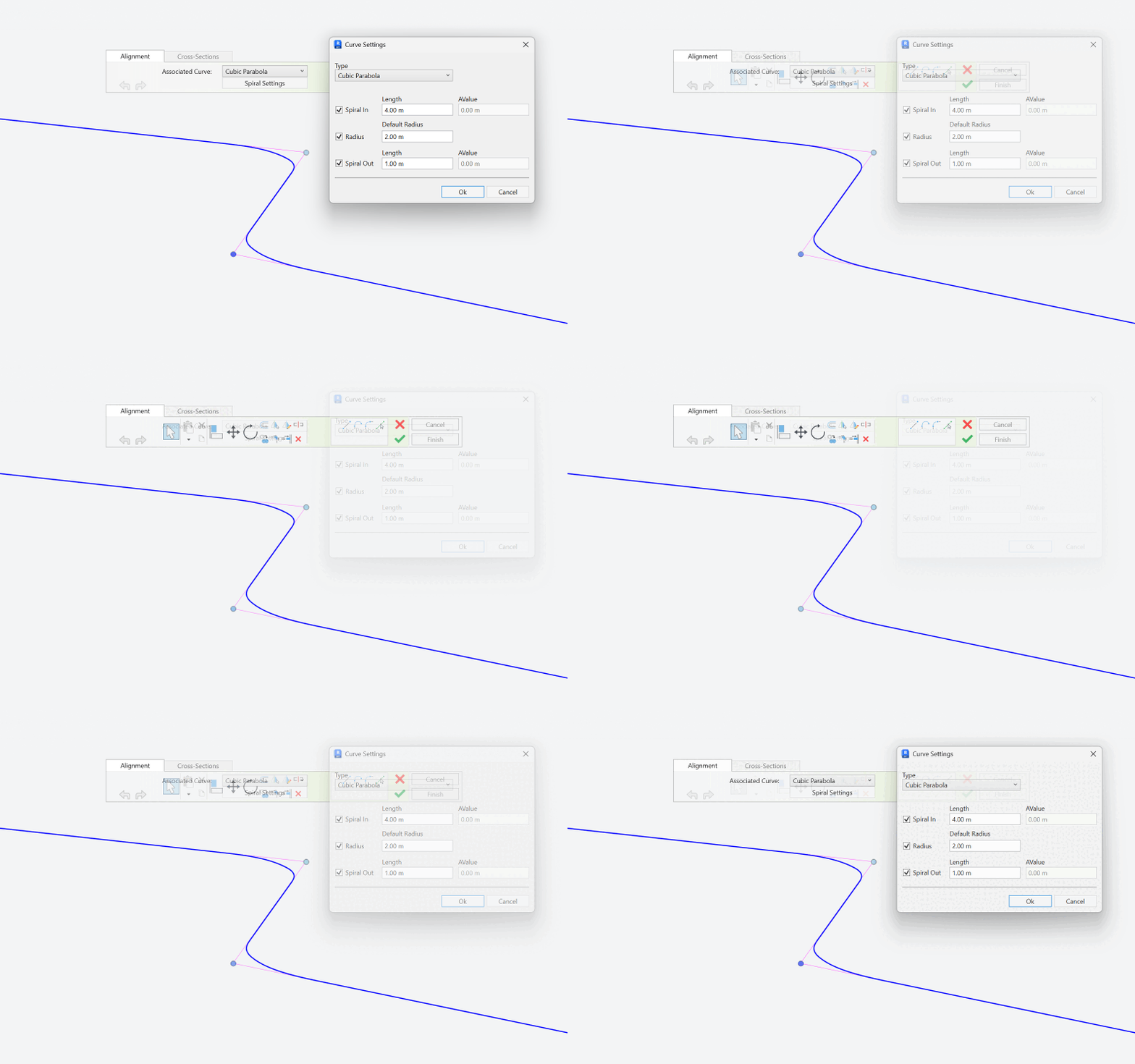
- Paths are now drawn using familiar Revit sketch tools such as lines, arcs, and Pick Line. Full snapping support is included – both Pick Line snapping and standard Revit object snaps – making alignment creation faster, more accurate, and way more comfortable to work with.
- Advanced curve behavior for precise alignment geometry: the tool now supports a wide range of advanced curve types, including biquadratic curves, parabolas, clothoids, bloss curves, sinusoidal transitions, and more – giving you fine control over geometry continuity and flow.
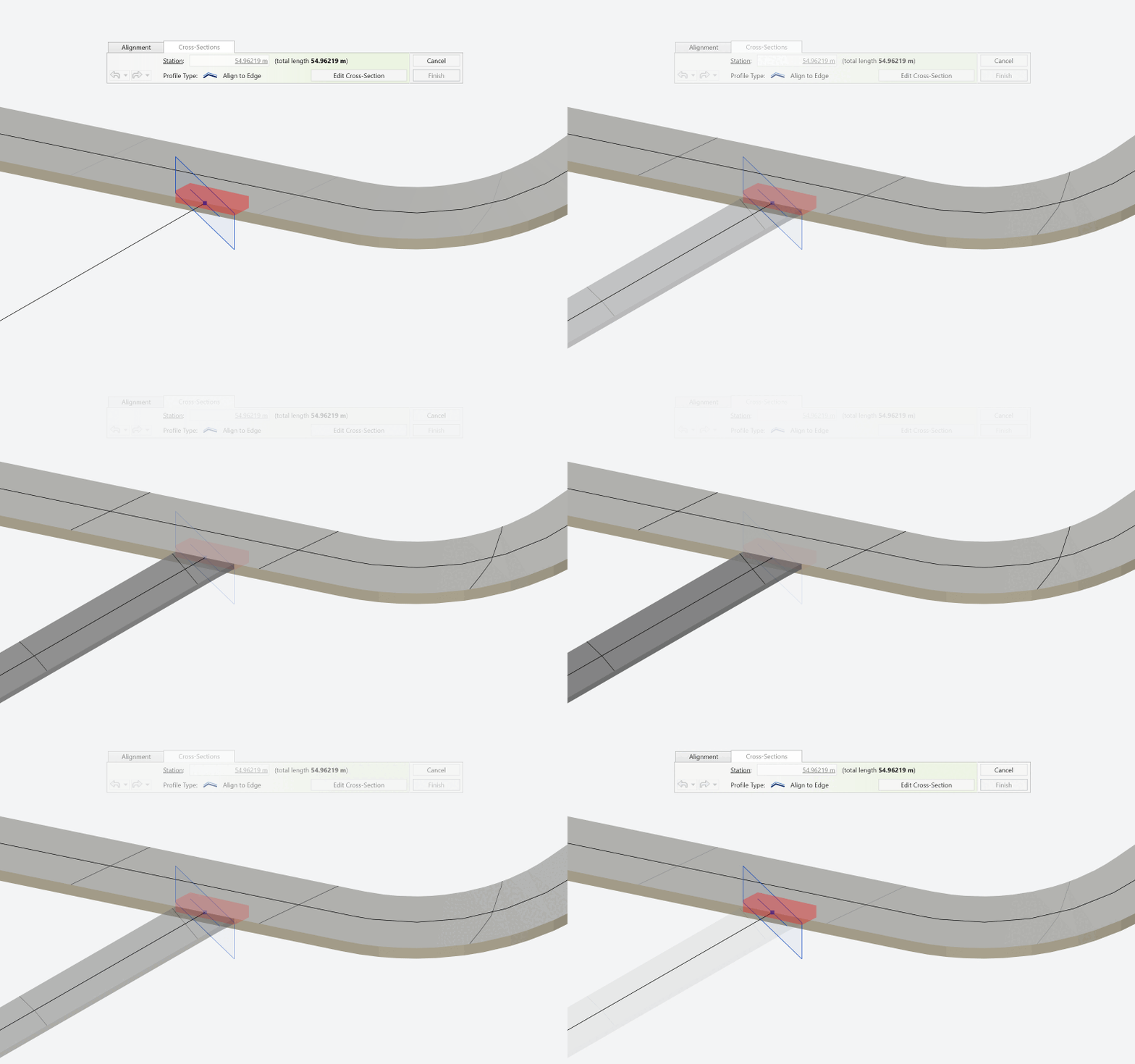
- Alignments now recognize and adapt to existing surfaces automatically. The profile detects the slope of the surface it connects to, and when extracting topography, intersecting areas are cut and aligned automatically – no more manual cleanup, and no overlapping geometry.
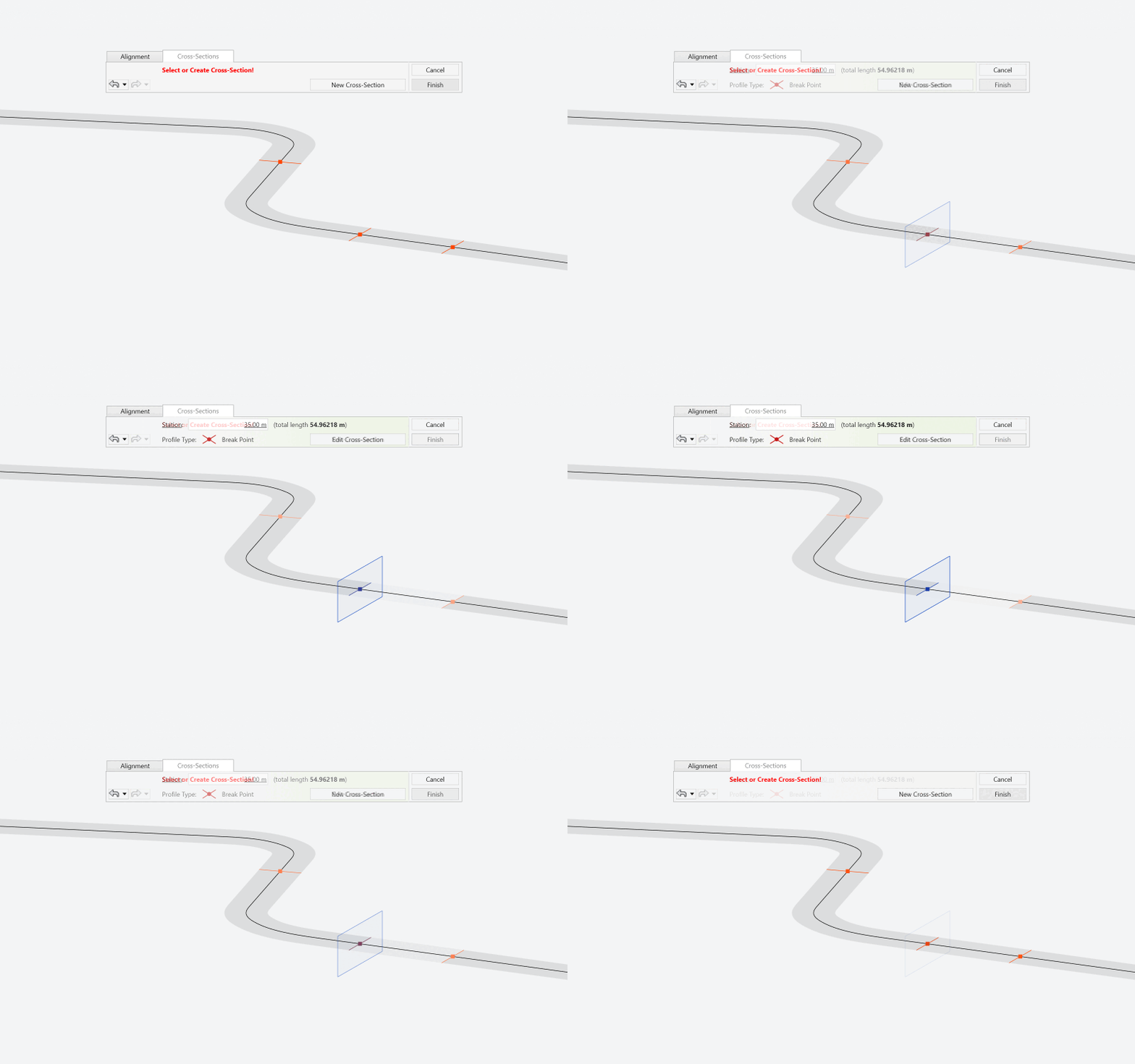
- Surfaces no longer have to stay as a single continuous element. With Break Points, topography can now be split into multiple segments at selected station points, creating intentional gaps exactly where you need them. This is perfect for road intersections, complex junctions, or areas requiring distinct treatments.
Topography Tools
Topography editing has been streamlined to feel lighter, faster, and far more visual: especially during the sketching process.
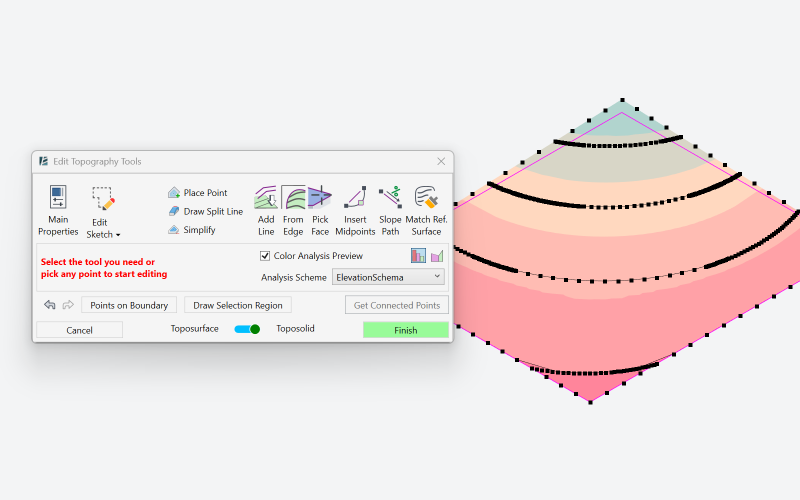
- Live Elevation and Slope Analysis during editing: you can now switch directly into Elevation or Slope Analysis inside the tool. This makes it possible to see height differences and slope intensity in real time while editing the points – instantly understanding how steep or how high the terrain becomes as you shape it. The result is faster decision-making and far greater confidence while modeling.
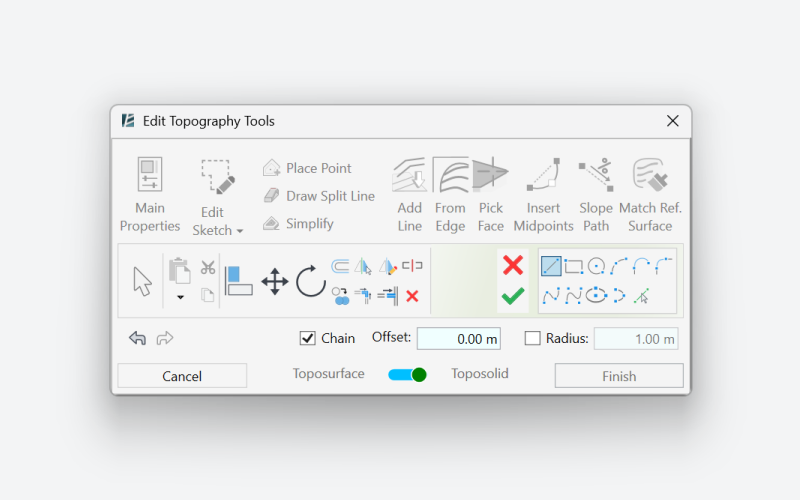
- Sketching tools have been expanded and fully aligned with Revit’s native UI, making toposolid creation faster, more fluid, and easier to adjust at any stage of the process.
- Editing operations are now noticeably smoother, even on more complex surfaces, helping maintain a fast and uninterrupted workflow.
A more connected way to work
Environment 15.0 is about bringing clarity back into everyday landscape modeling. Planting, analysis, and site modeling are no longer separate steps that need constant coordination – they now respond to each other as parts of one connected system.
We’re incredibly excited about this release and how it changes the way landscape projects come together in Revit. And as always, this is just another step forward – built directly from real workflows, real projects, and real feedback.
We can’t wait to see what you create with Environment 15.0.